
How to Create an Effective Wishlist in Bernuvia
October 15, 2026 · 3 min read
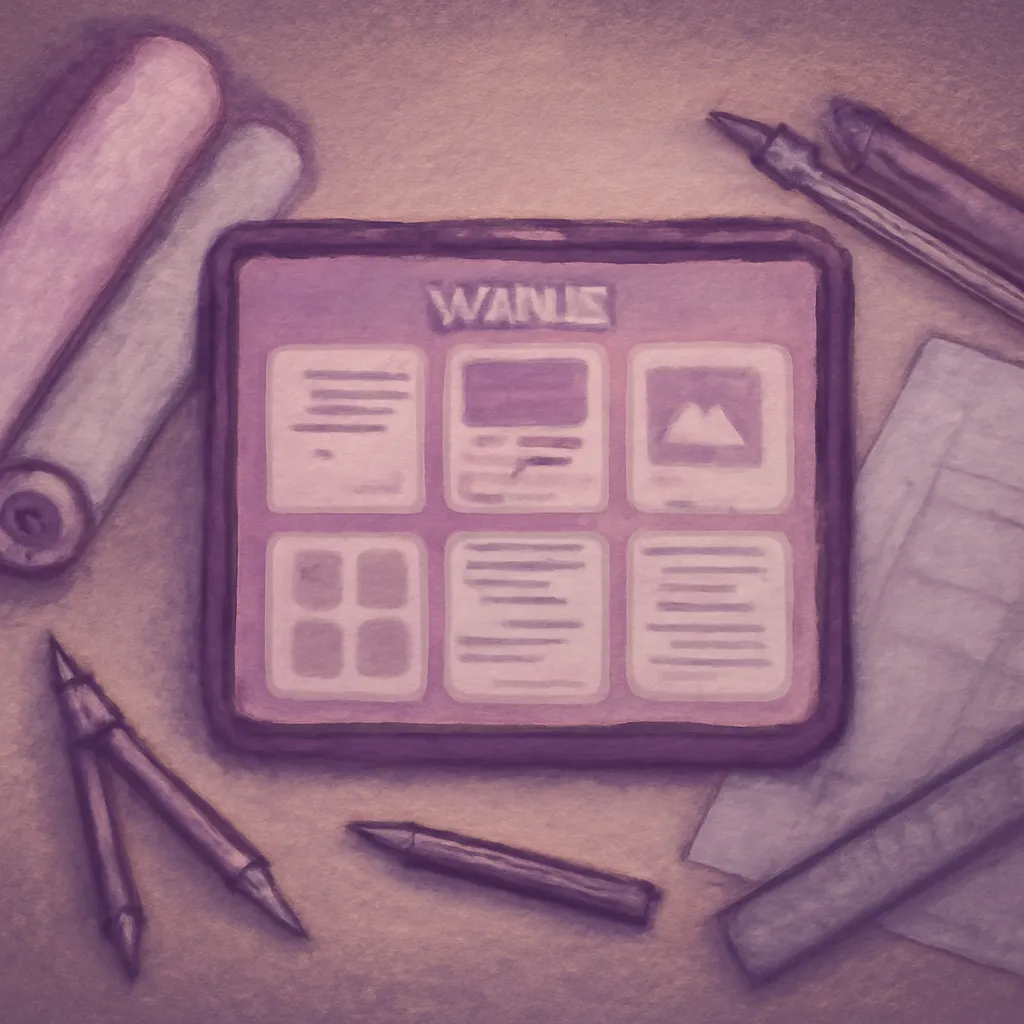
Introduction to Wishlists in Bernuvia
Creating a wishlist in Bernuvia is an effective strategy for organizing and selecting templates that align with your needs. This resource allows buyers to save their preferred options and review them later, thus facilitating decision-making.
In a marketplace like Bernuvia, where the variety of templates is extensive, having a wishlist can save you time and improve the efficiency of your purchases. It not only helps you remember the items that interest you but also allows you to compare different options before making a purchase.
In this article, we will explore how you can create and manage your wishlist in Bernuvia, as well as some tips to maximize its usefulness.
Benefits of Using a Wishlist

Wishlists offer multiple advantages. First, they facilitate the organization of your preferences in one place, allowing for easy comparison between different templates. By having a visual record of your options, you can better evaluate which one fits your project.
Additionally, wishlists can be useful for prioritizing your purchases. You can include templates that interest you in the short term and those you consider for future projects. This creates a more structured workflow.
Finally, having a wishlist allows you to stay informed about potential promotions or changes in the prices of the templates you have saved. This helps you make informed decisions about when to make your purchases.
“A well-managed wishlist is the key to optimizing your purchasing decisions in Bernuvia.”
Steps to Create Your Wishlist in Bernuvia
To start creating your wishlist in Bernuvia, you first need to have an account. Log in to your profile and go to the 'Favorites' section. Here you can add the templates that interest you the most.
When you find a template you want to add, simply click on the 'Add to Favorites' option. This step is crucial, as it ensures that the template is saved in your list for future reference.
Also, make sure to review your list regularly. This will allow you to remove templates that are no longer of interest and maintain a fresh focus on what you really want to acquire.
- Log in to your Bernuvia account.
- Go to the 'Favorites' section.
- Click 'Add to Favorites' for the templates that interest you.
- Review your list regularly to keep it updated.
Tips for Keeping Your Wishlist Organized

Keeping your wishlist organized is essential. A good practice is to categorize your templates, such as 'Web Design', 'Mobile Apps', or 'Future Projects'. This will help you quickly find what you're looking for.
It's also helpful to add notes or comments to the templates in your list, allowing you to remember why you saved them and what specific features attracted you to each one.
Finally, consider sharing your wishlist with colleagues or friends. This can provide you with different perspectives on your choices, as well as recommendations for other templates you may not have considered.
- Categorize your templates by categories.
- Add notes about each template.
- Share your list with colleagues for recommendations.
Common Mistakes When Using Wishlists and How to Avoid Them
A common mistake is not reviewing the wishlist regularly. This can lead to the accumulation of irrelevant templates or forgetting desired options. Set a schedule to review your list and keep it fresh.
Another mistake is not taking advantage of the descriptions and reviews of the templates before adding them to the list. Take the time to read comments from other users, which will give you a better perspective on what to expect.
Lastly, remember that wishlists are not permanent. As your needs change, it is crucial to update your list to reflect your current interests.
Conclusion: Enhancing Your Purchases in Bernuvia
Creating and maintaining a wishlist in Bernuvia can transform your shopping experience. It allows you to organize your options, prioritize your needs, and make more informed decisions.
By following the steps and tips mentioned, you will not only optimize your purchasing process but also ensure that you do not miss any valuable opportunities in the Bernuvia catalog.
Remember that each template in your list could be the key to taking your projects to the next level, so start organizing today!
Frequently asked questions
How can I add a template to my wishlist?
To add a template, simply click on 'Add to Favorites' on the template card that interests you.
Can I share my wishlist with others?
Yes, you can share your wishlist with colleagues or friends to get recommendations and different perspectives.
Is it necessary to have an account to use the wishlist?
Yes, you need to have an account on Bernuvia to create and manage your wishlist.
Ready to launch? Explore production-ready templates.
Explore the marketplace